Organisers Guide
Help & FAQ for event organisers.
How To
Checkin as visitor (no registration)
Using Any.Company does not require app install or registration. If the event organiser allows it, you can join the event as "visitor" and set your alias just as registred users. If you are not logged-in, scan a Team-QR code. You will be warned that visitor accounts are periodically cleaned. "Log in or register to reuse this session" You will get a chance to login or register.
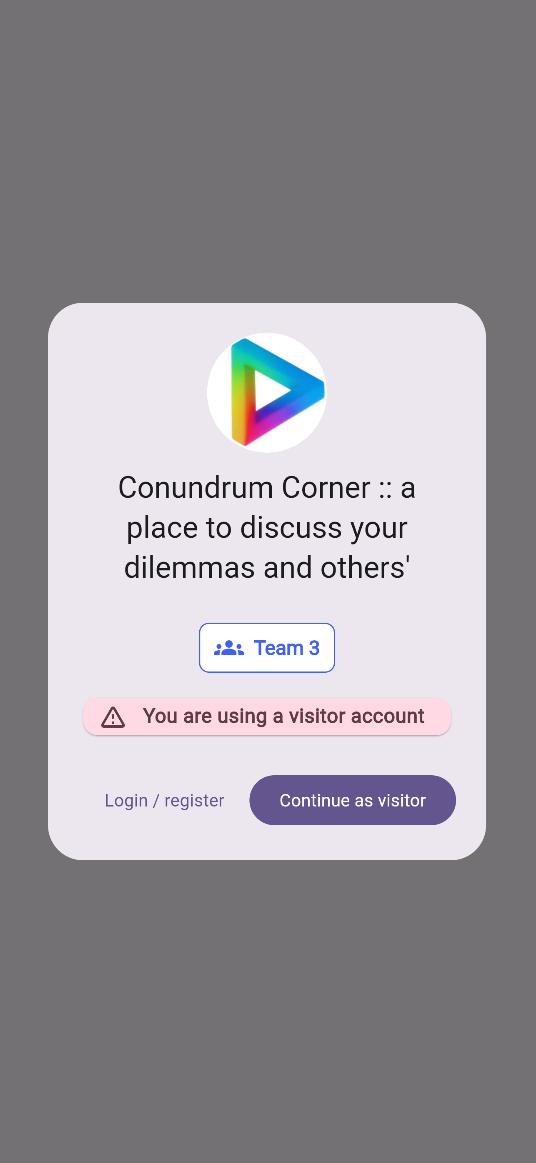
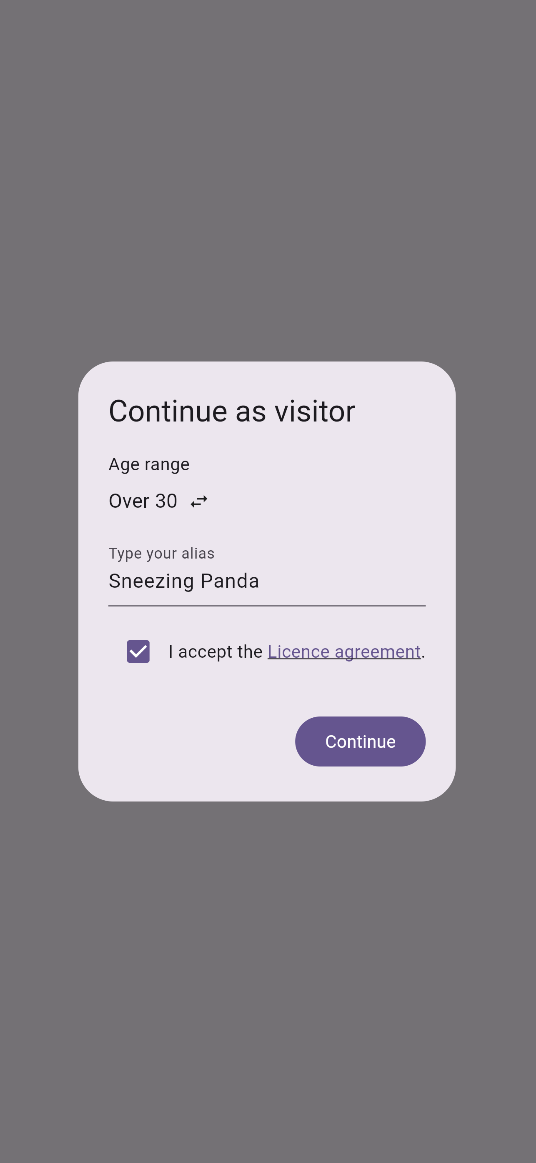
When accepting to continue as visitor, you will be asked to select your age range, to choose an alias and to accept the license agreement.
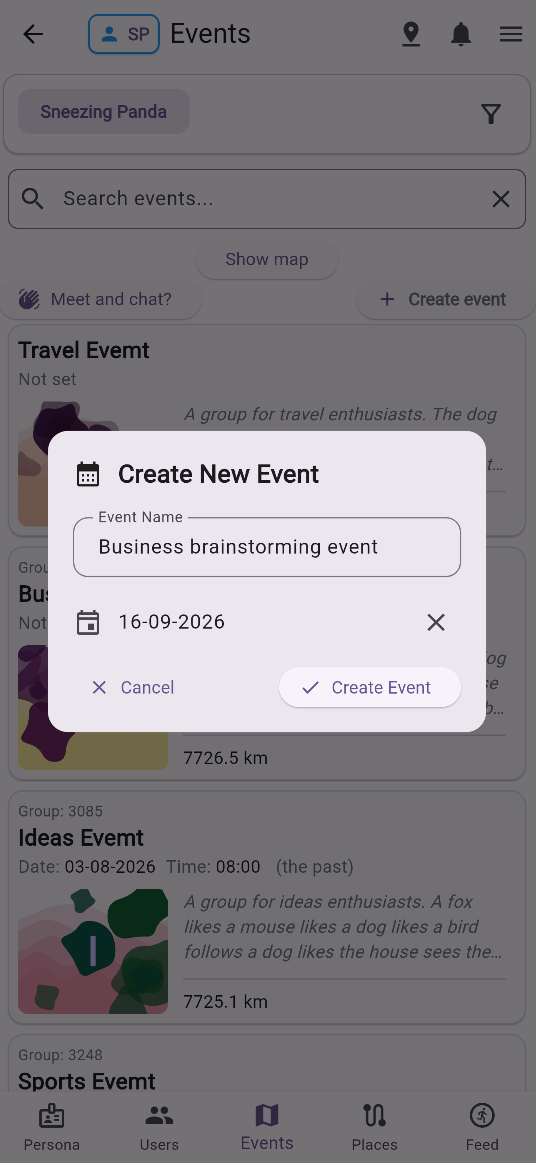
Creating an event
Creating an event is really simple. On the Events Page you find the "Create event" button. You are asked to type the event name. Later you can rename the event, set the date and time, set location, set the event logo and markdown description. Before becoming available, an event has to be "Published" by the organisers and approved by the background agent from Any.Company. This process usually takes under 5 minutes.
Event details
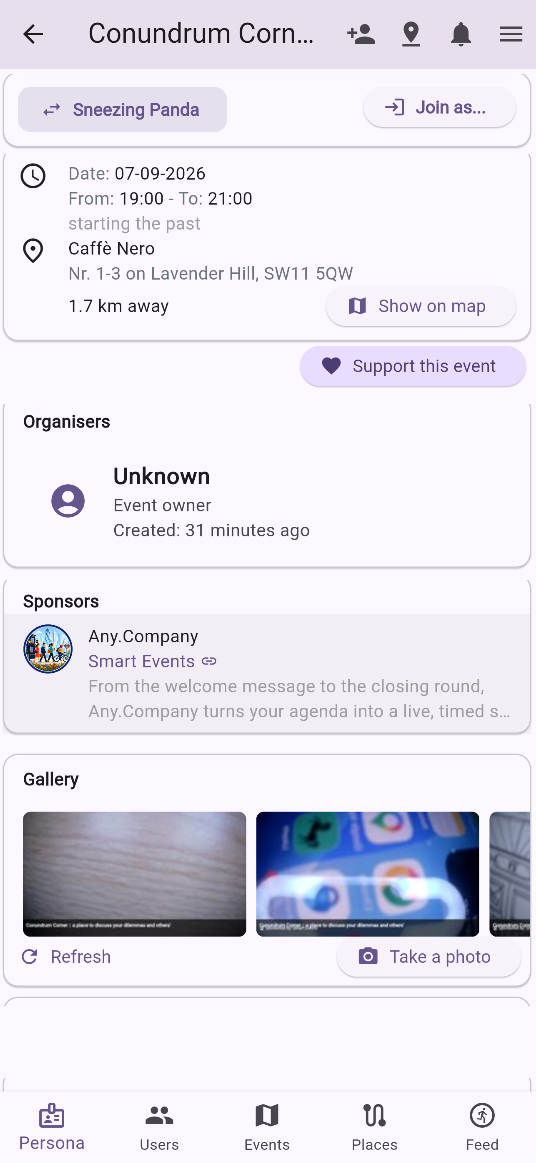
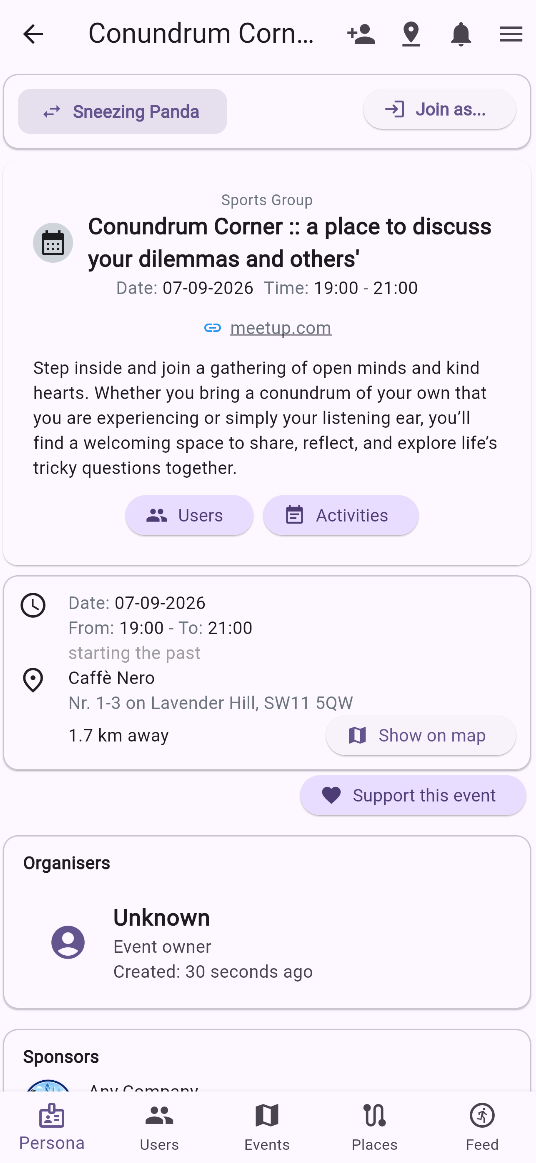
Event details helps users find the event and understand its specifics.
- Organisers - The list of event organisers.
- Sponsors - The list of event sponsors.
- Gallery - A carousel of event images.
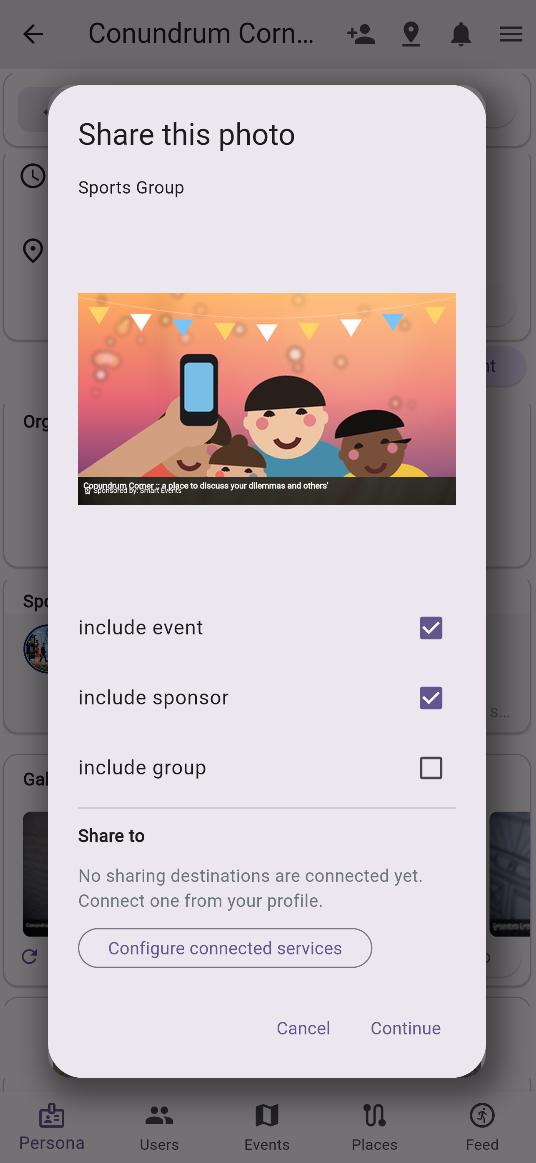
The app allows users to add a watermark on the event photos before sharing them on social media. The watermark can include the event name and sponsors. This is an additional incentive for sponsors to support the event.
Finding support for events
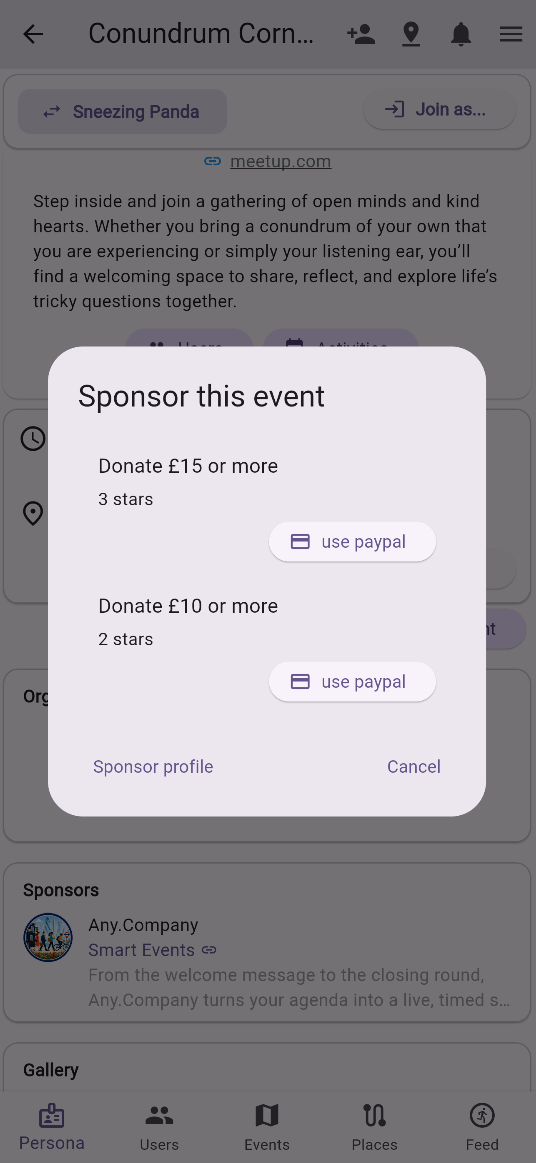
The app allows organisers to add sponsoring links. This version of Any.Company does not process payments. One option is to generate your donation links via PayPal.
Adverts
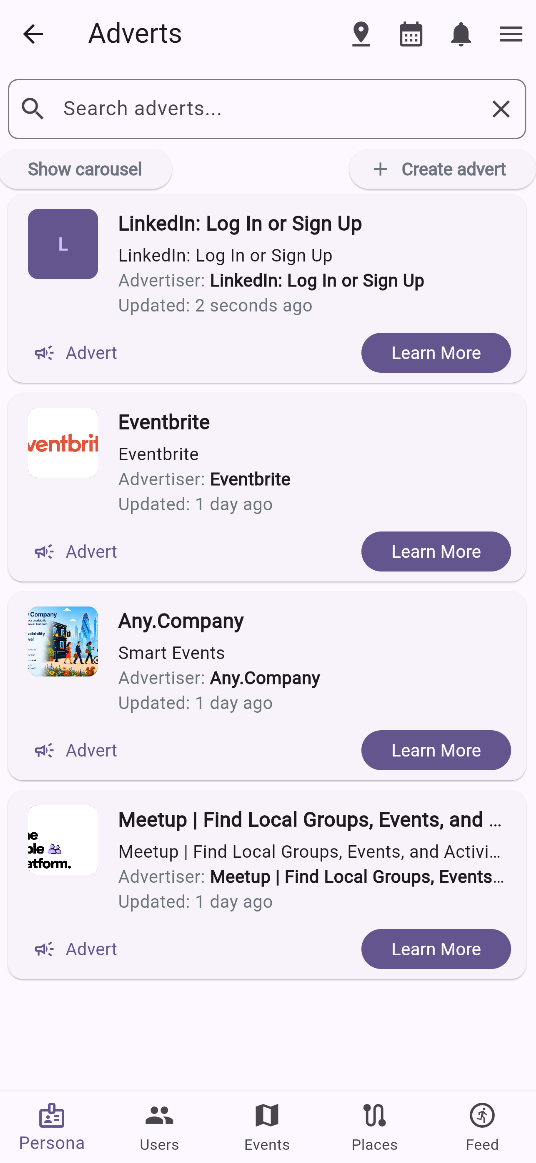
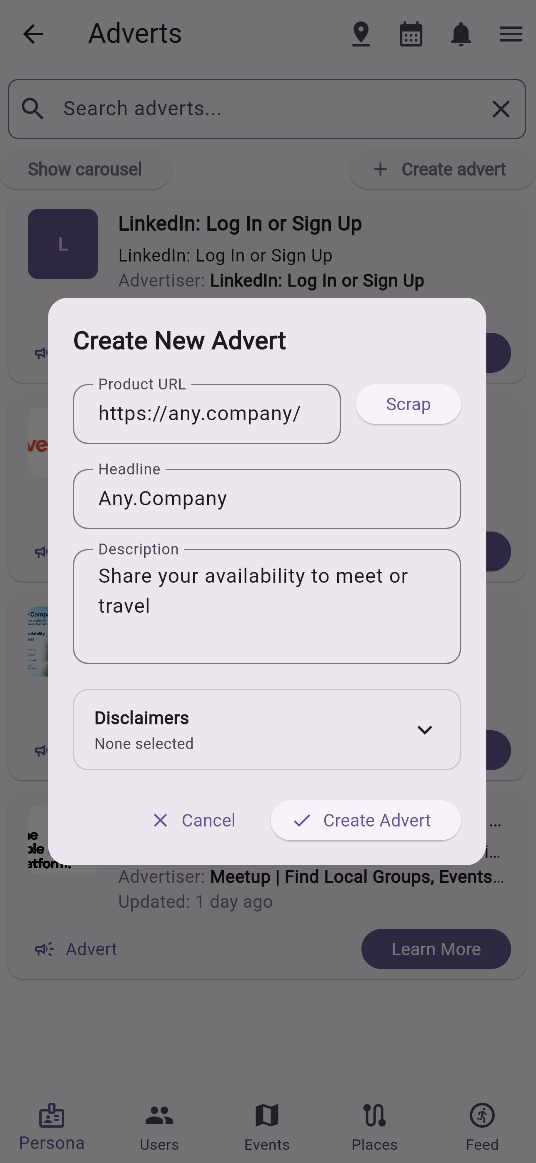
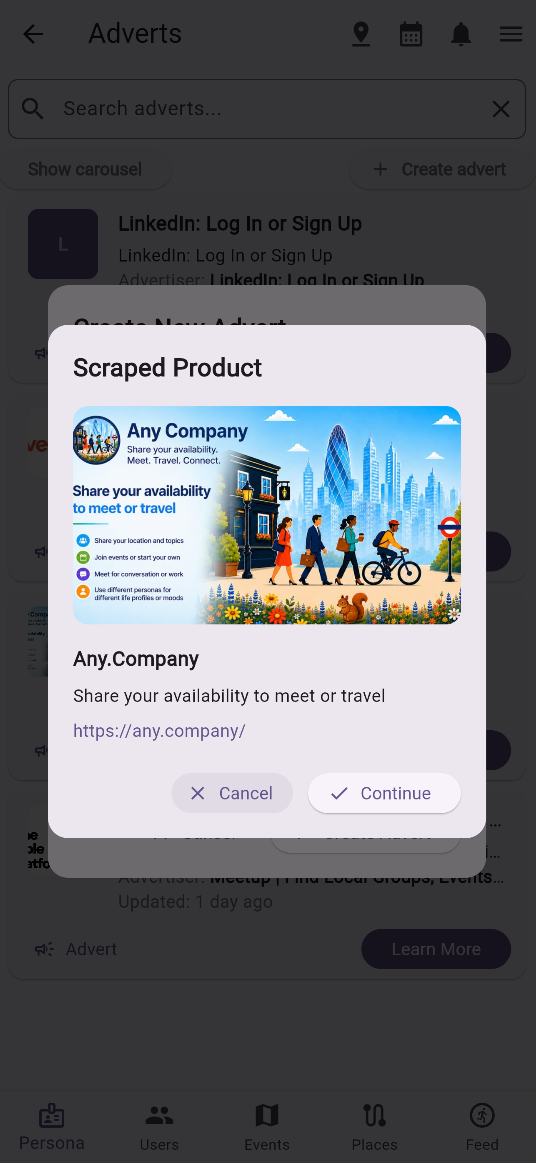
If an event does not have its own sponsors and its organiser is on a free subscription, the advert banner will be filled by random adverts. Organisers can avoid sensitive advert topics.
Event teams
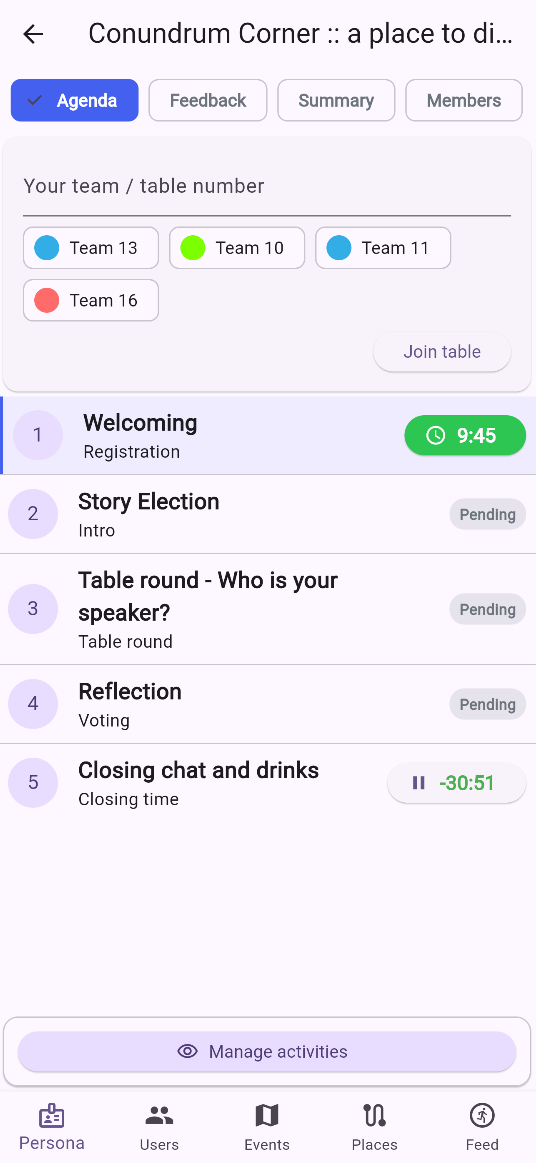
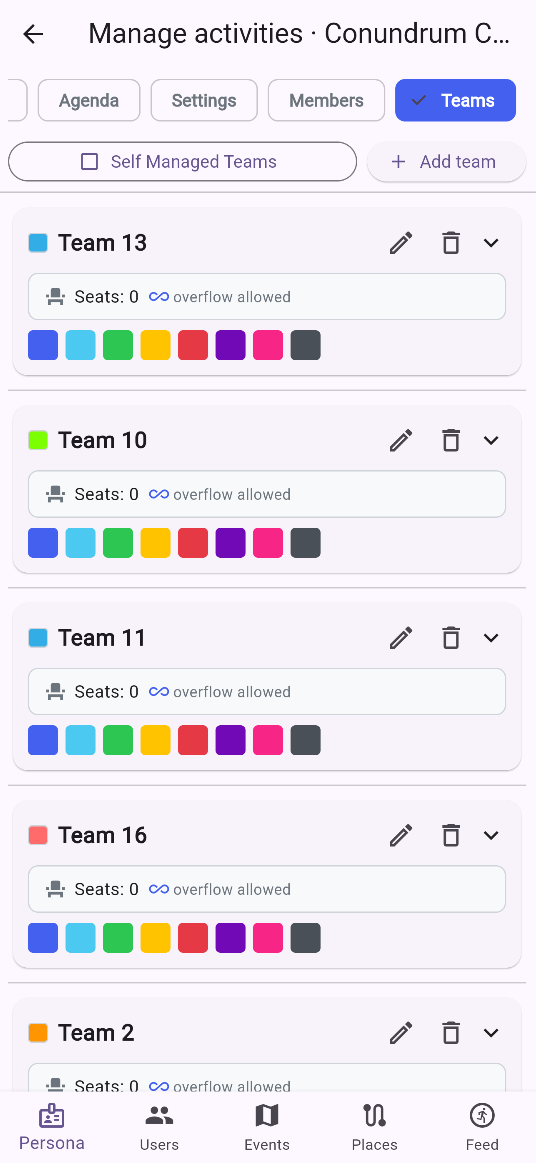
Most in-person events have to split members into manageable teams. By default the teams are self-managed. This means that users allocate themselves to teams either by scanning QR codes, by choosing from available options or by typing in their own team number. Event organisers can opt-out from self managed teams to have strict control on the team names and size. "Team overflow" allows a team to accept members over the recommended team size; this is the default. Members will get updates when new teams are available or a user joined or left their team.
Idea not implemented yet: the organiser can also set team topics and the users can vote on them.
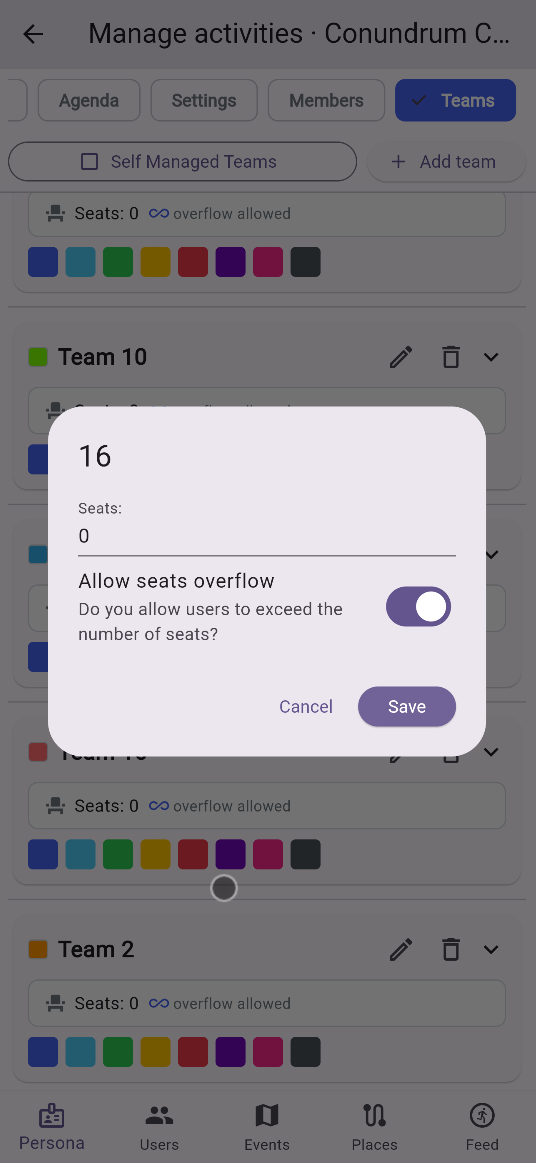
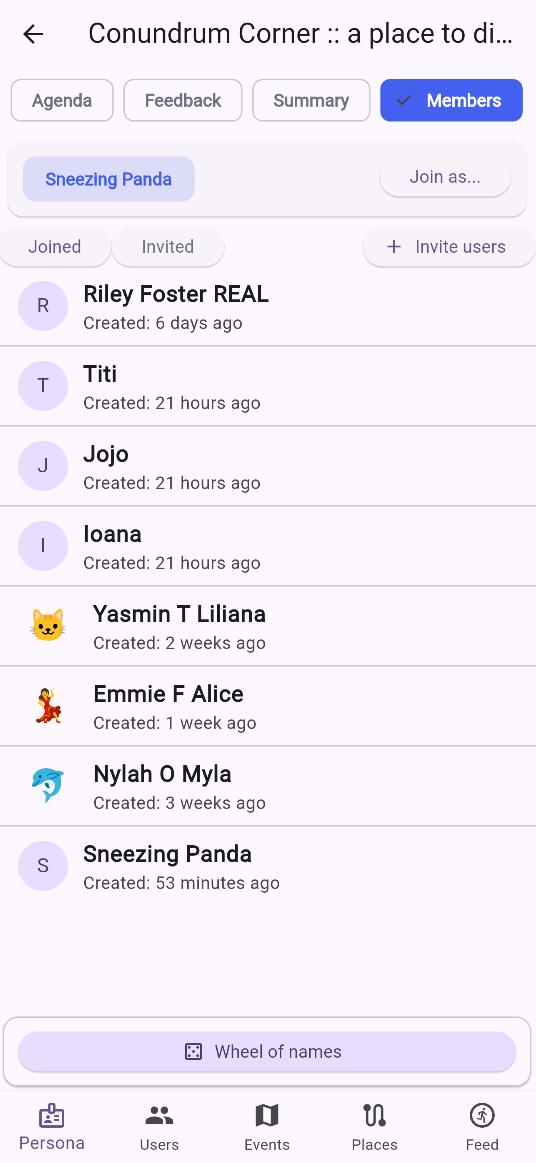
Event members
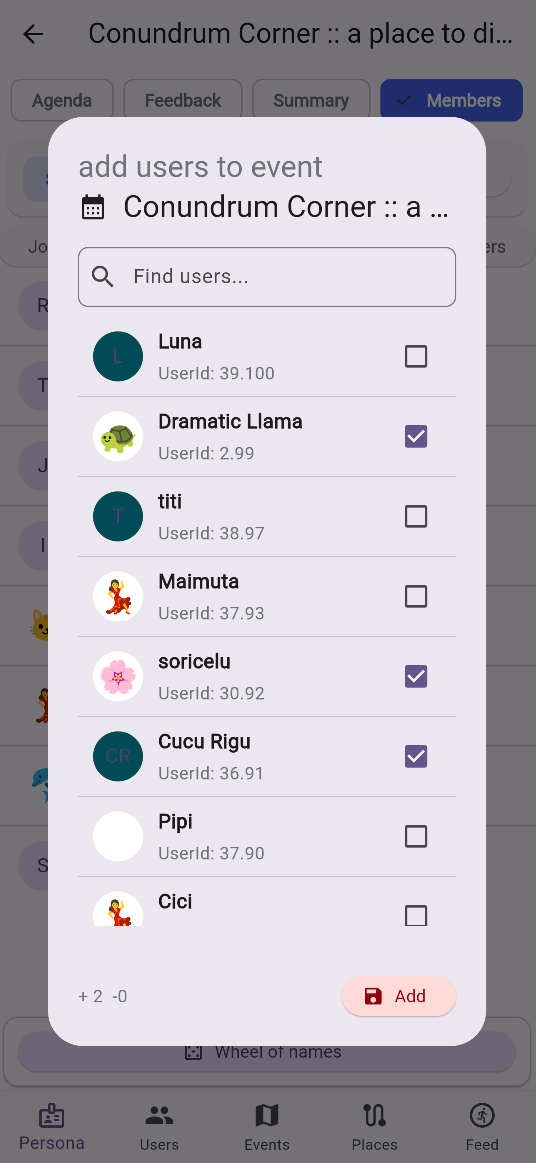
The members listing page allows anyone to invite new users.
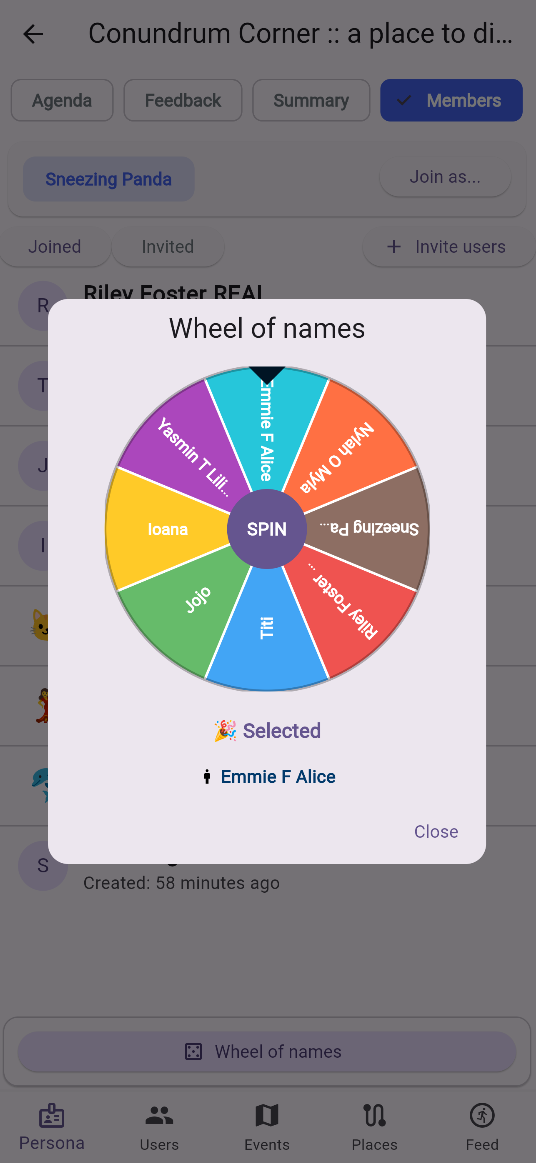
- The 'Wheel of names' can become helpful depending on the event needs and activities.
Create a new event
Recurrent events can be generated from the Events Group page.
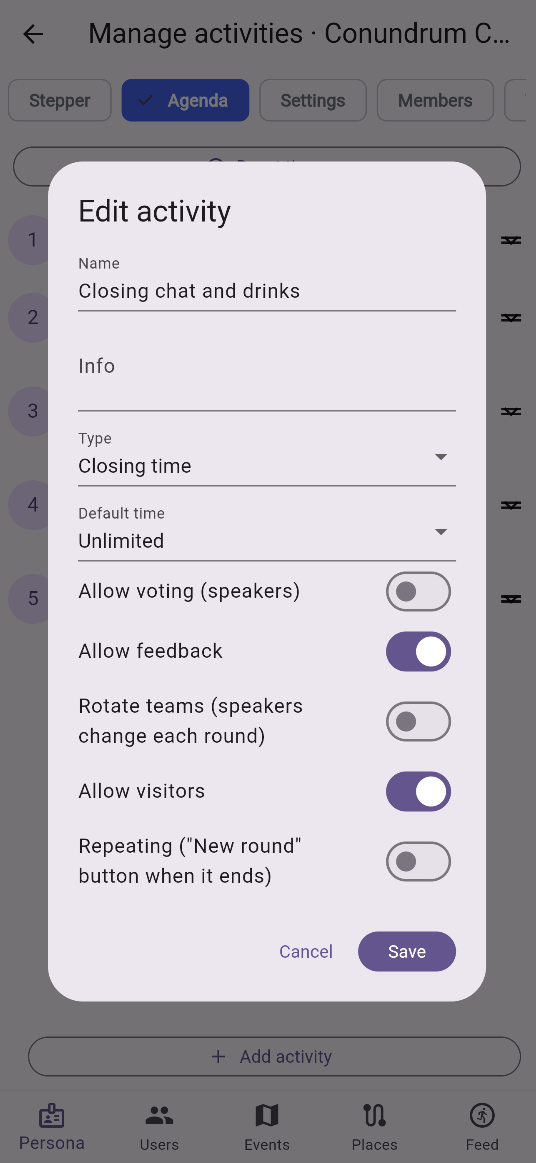
Edit activity
You can rename, change their type or add instructions for the event members. You can define the default allocated time.
- Type - One of the available options that will set defaults for the rest of the options: Registration, Intro, Table round, Voting, Closing time.
- Default times - Set the initial allocated time for the activity. Also allows "Unlimited" activities.
- Allow voting - Will allow users to cast a vote on speakers. Voting criteria are defined on the "Settings" panel.
- Allow visitors - Allow users to join teams while the activity is ongoing.
- Rotate teams - Allow users to migrate from team to team.
- Repeating - Will show a "New round" button to restart the activity. This will result in a new voting session as well.
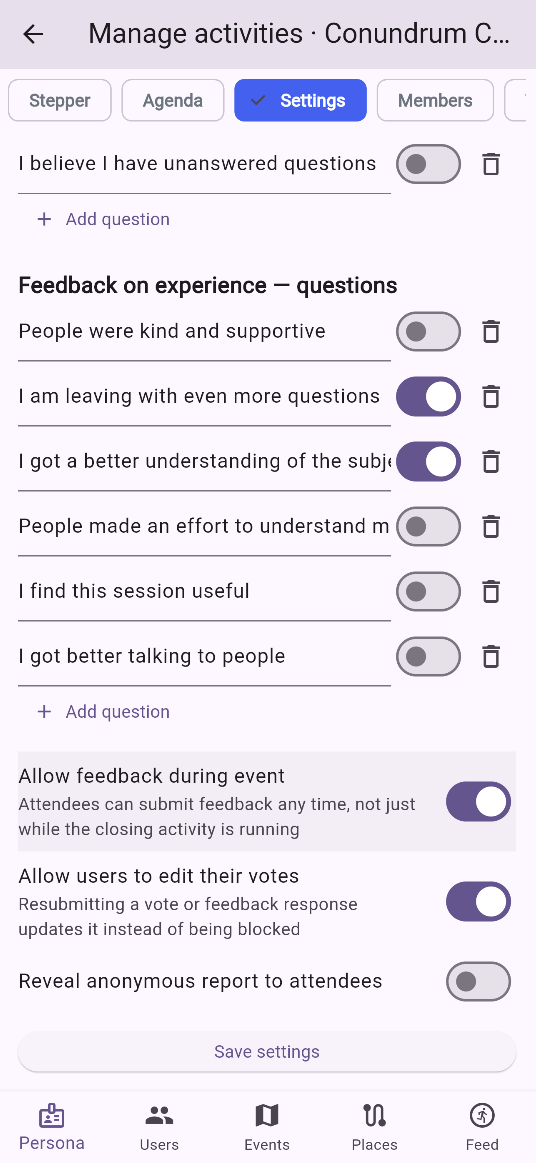
Edit event options
- Welcome info - Will be shown to users when they join the event.
- Leaving info - Will be shown to users when they leave the event.
- Voting on speakers - Defines the range of questions for members voting. They can be presented as on-off or as stars from 0 to 5. Is by default associated with "Rotate teams" but can be enabled for any activity.
- Feedback on experience - Defines the range of questions for event feedback. They are by default available during the closing event and after the event ended.
- Allow users to edit their votes - Will allow users to edit any of their votes, not only the vote for the current activity.
- Reveal anonymous report to attendees - Will show the voting statistics to the members while the voting happens.
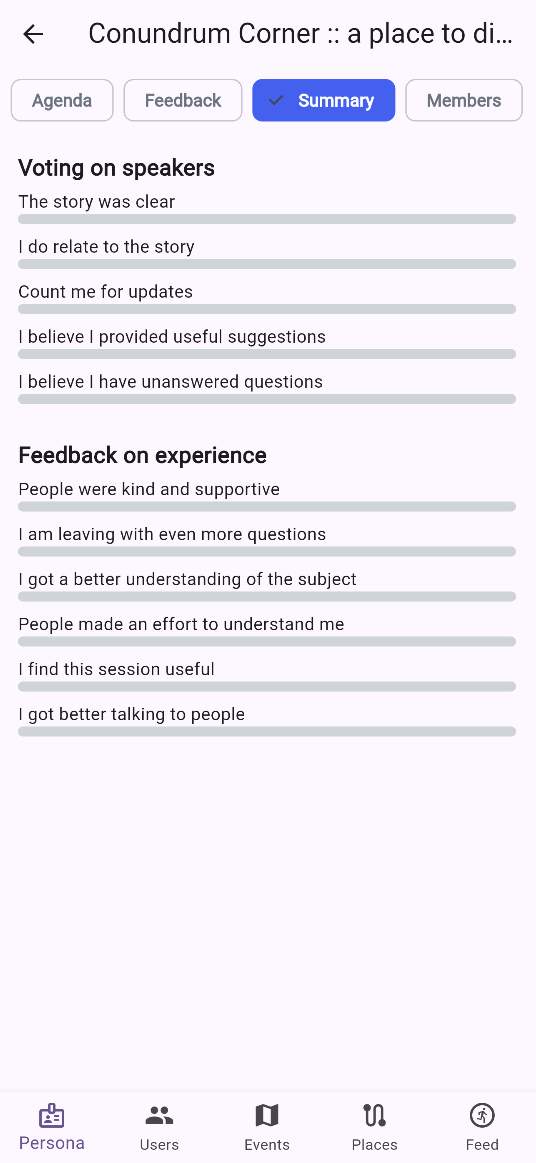
Event feedback
By default is enabled for all events. Event organisers can disable it from "Edit Event Options". Organisers can share the event feedback statistics with the event members from "Edit Event Options".
Reset activity time
To reset the time left on all activities and therefore reset the initial state of the agenda, navigate from the Event Page to Activities then Manage Activities.
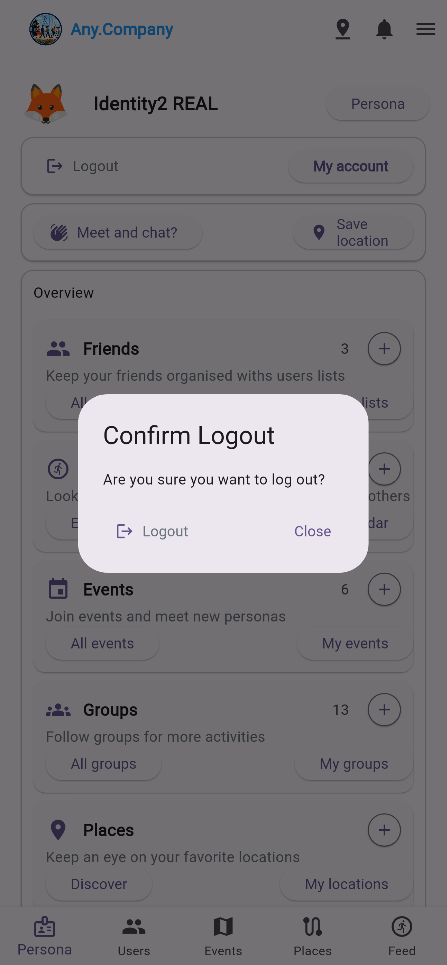
Logout
You can logout from the overview page if needed. On mobile the app is protected by a biometrics secured screen.
FAQ
Can I change my persona's name?
No, but you can create a new persona with the name that you want.
How to manage activities
If you are the owner of the event: Go to Event Page, press the Activities button. You will be redirected to the Agenda Panel that has the "Manage Activities" button at the bottom. This will redirect you to the management page where you find the "Agenda" panel. Here you can reset the agenda, add or sort activities, and you can edit the activity name or behavior.